
How to add Santa to a photo: stickers, Santa apps or AI, and which one looks real
The blubiu team · Published 2026-11-19 · Updated 2026-11-21
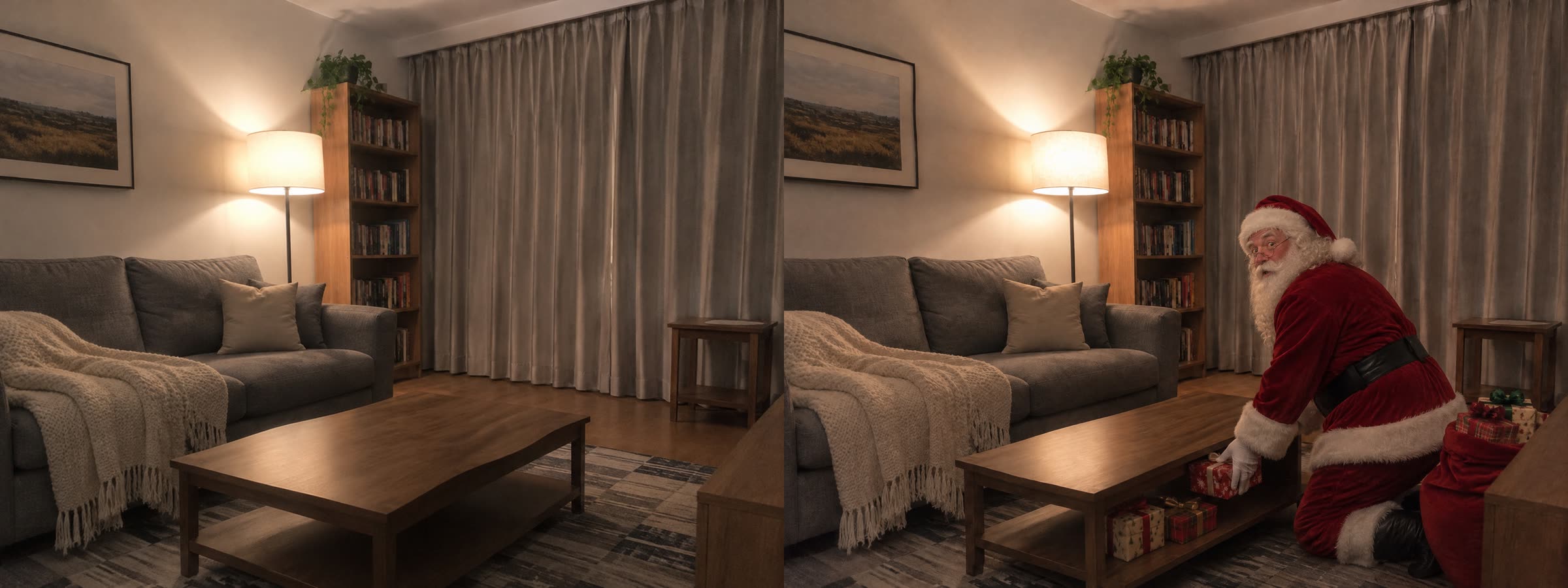
To add Santa to a photo, decide first which picture you want: Santa caught in a photo of your own room, as proof for the kids, or your family posing with Santa. For the first, a sticker or a Santa app pastes a ready-made Santa on top of your photo, which is free or cheap but needs the light to match, while an AI photo generator draws Santa into the room with matching light and shadow. For the second, AI redraws the whole scene around your family. We tested both on blubiu's AI Christmas photo generator: Santa in my house kept the sofa, lamp, bookshelf, curtains and rug exactly where they were and added only Santa and his presents in 53 seconds; With Santa kept all four faces in a family photo in 57 seconds but swapped everyone's clothes for Christmas sweaters. A Santa hat on a selfie took 248 seconds. If you need your original photo untouched with only Santa added, use the room scene or a sticker, not the portrait scenes.
Key takeaways
- Two different pictures: Santa caught in your room (keep the photo, add Santa) or a family photo with Santa (the scene is redrawn around you).
- Stickers keep your photo untouched and cost little: iCaughtSanta gives three Santa stickers free on iPhone and Android, but the light and shadow are up to you.
- AI matches light and shadow: our Santa in my house test changed nothing in the room except the new Santa and presents, in 53 seconds at 2048×1536.
- Portrait scenes keep faces but redraw clothes and background: four faces survived the With Santa scene; four outfits did not.
- On blubiu the Free plan's monthly credits cover five 2K Christmas photos.
Santa in your room or a photo with Santa: pick first
A "Santa in my house" photo keeps your room and adds Santa, while a "photo with Santa" puts your family beside Santa in a new Christmas scene.
Keep fixed
- Santa in my house: the room, furniture, light and camera angle stay as photographed
- Photo with Santa: each person's face, hair, glasses and age stay the same
Free to change
- Santa in my house: Santa, his sack and a few presents are added
- Photo with Santa: the background, the clothes and the pose are new
4 ways to add Santa to a photo, compared
Use a sticker when the photo must stay untouched, a one-click AI tool when you want it fast, and an AI Christmas photo generator when you also want a family photo with Santa.
| Way | Keeps your photo? | Cost | Weak spot |
|---|---|---|---|
| A Santa image placed as a sticker in your phone's photo editor (a tip shared in a Facebook parents' group) | Yes | Free | Light, shadow and size are all by hand; it often looks pasted on |
| A Santa sticker app: iCaughtSanta, or Capture the Magic's Catch Santa In My House | Yes; a ready-made Santa is merged on top | iCaughtSanta: three Santa stickers free | A fixed set of Santa poses; matching the light is still up to you |
| A one-click AI "add Santa" tool: Fotor or FlexClip | Mostly; the AI places Santa and adjusts the light | Fotor: free credits on sign-up, then Pro or credit packs | Fotor's presets decide the look; FlexClip's page does not state its price |
| An AI Christmas photo generator (blubiu) | Santa in my house keeps it; the portrait scenes redraw it | Credits per photo; the Free plan covers five 2K photos a month | 53 to 248 seconds per photo in our test; clothes change in portrait scenes |
How to add Santa to a photo of your house with AI
Take a photo of the room at night, upload it to the AI Christmas photo generator, pick Santa in my house and generate: the room stays as it is and Santa appears placing presents.
- After bedtime, photograph the spot where Santa would be: the tree, the fireplace or the coffee table with the cookies. Leave people out of the photo.
- Open the AI Christmas photo generator, upload the photo and pick Santa in my house.
- Generate. The result keeps your photo's shape at 2K: our 4:3 room photo came back at 2048×1536.
- Check the room before you show it: everything should be where you left it.
Result: 53 seconds. The sofa, blanket, floor lamp, bookshelf, curtains and rug did not move; Santa knelt by the bookshelf with wrapped presents and a sack. An earlier run of the same scene put him by the coffee table, looking back over his shoulder.
Drift and limits: Tested on night photos of one room only; a daylight room is untested. If the room has no tree or fireplace, none is added.
AI Christmas photo generator →How to make a family photo with Santa
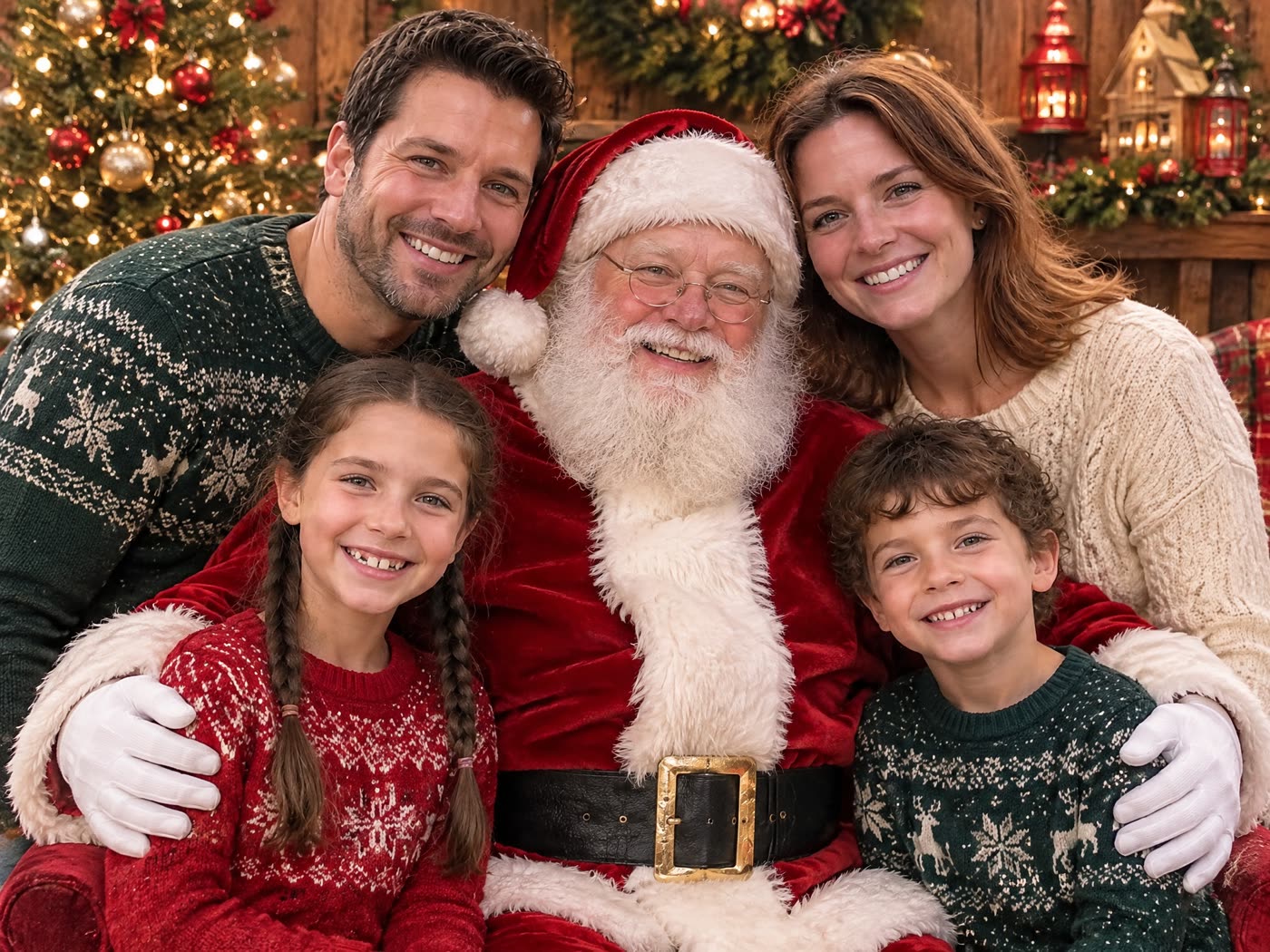
Upload one photo with everyone in it and pick With Santa: the same people appear beside a classic Santa in a decorated Christmas setting.
Everyone has to be in the one photo you upload; it does not combine separate portraits. Sharp, front-facing faces are the safe choice: our test photo of a family of four had large faces, and a seven-person group photo also kept every face, but small or turned-away faces are untested.
Result: 57 seconds. All four faces, the girl's two braids and the boy's curls came through; Santa sat in the middle with his arms around the children.
Drift and limits: Everyone's clothes were replaced by Christmas sweaters, and the backyard became a Christmas set. Santa is a generic classic Santa; you cannot make him look like a particular person.
Add a Santa hat while changing the scene
Upload the photo, pick a Christmas scene and write "wearing a red Santa hat" in Notes; in our selfie test the face stayed the same and the hat appeared. To keep the photo itself and add only the hat, see [how to add a Santa hat to a photo](/how-to-add-a-santa-hat-to-a-photo).
Result: 248 seconds, 2048×2048. Same face, smile and hair, now under a red Santa hat.
Drift and limits: Because we picked the Fireplace scene, the sweater and the room changed too. It is the slowest of our three timed runs; the other two took under a minute.

How to make Santa look real in your photo
Shoot the room the way it will look that night, leave space where Santa would stand, and keep the photo plain: the closer the photo is to a real night-time snapshot, the more the result looks like one.
- Turn on the tree lights and a lamp; the generated Santa takes his light from the photo.
- Leave the presents out of the photo if you want Santa to bring them; ours added a few.
- For a moving version, start from the same room photo on Santa caught on camera: Santa walks in and leaves the presents in a 5-second clip with sound.
How we tested it
We used AI-generated test photos of made-up people and rooms on blubiu's AI Christmas photo generator (GPT Image 2.6 Flare, 2K), checked every result against the original, and timed three runs.
The first batch, on 17 November 2026, covered seven scenes from four test photos and passed first time; it was not timed. On 19 November we reran two scenes with a stopwatch and tested the Santa hat note. The three timed runs cost under $0.20 in model fees. All test photos are AI-generated; no real person or home appears.
| Test | Photo | Time | Result |
|---|---|---|---|
| Santa in my house | Living room at night, 4:3 | 53 s | Room unchanged; Santa, sack and presents added |
| With Santa | Family of four, 4:3 | 57 s | Four faces kept; clothes became sweaters |
| Fireplace + "wearing a red Santa hat" | Selfie, 1:1 | 248 s | Face kept; hat added; sweater and room changed |
| Seven scenes, first batch (17 Nov) | Four test photos | Not timed | All passed first time; a dog gained a bandana, a backpack strap vanished |
| Fireplace, group of seven | Park photo, 16:9 | Not timed | All seven faces recognizable |
When AI is the wrong way to add Santa
- Your original photo must stay pixel for pixel and you only want Santa on top: a sticker app does exactly that.
- You want to keep the clothes everyone wore in the photo: the portrait scenes replace them with Christmas outfits.
- You want a particular Santa, such as the one from the mall photo, or a Santa who looks like Grandpa.
- Your group photo has many small or turned-away faces: we have tested up to seven people with large faces only.
Add Santa to your photo
AI Christmas Photo Generator →
Upload a room or family photo and pick Santa in my house or With Santa; free to try.
Santa Caught on Camera →
Make the same room into a clip of Santa walking in, with sound.
AI Christmas Card Generator →
Put the finished photo on a Christmas card with your greeting.
How to Catch Santa on Camera: 5 Ways, Tested →
Read the companion guide: 5 ways to catch Santa on camera.
FAQ
How do you add Santa to your photo?
Either paste a ready-made Santa on top with a sticker or a Santa app, or let AI draw him in: on the AI Christmas photo generator, upload a room photo and pick Santa in my house. Our test kept the room as it was and took 53 seconds.
How do I add a Santa hat to a photo online for free?
Pick a Christmas scene and write "wearing a red Santa hat" in Notes. The Free plan's monthly credits cover five 2K photos. In our selfie test the face stayed the same, but the scene also changed the sweater and the room. To change nothing but the hat, the Christmas PFP maker has Keep my photo: 24 seconds in our tests.
Is there a free Santa app?
iCaughtSanta's page offers three Santa stickers free on iPhone and Android, and Fotor gives free credits when you sign up. blubiu runs in the browser, with no app to install, and its Free plan covers five 2K Christmas photos a month.
Can I get a picture with Santa without visiting one?
Yes: upload a photo of your family and pick With Santa. Everyone's face stays the same and a classic Santa sits among you, but your clothes are redrawn as Christmas outfits.
Can I make it a video of Santa instead of a photo?
Yes: upload the same room photo, or a doorbell screenshot, to Santa caught on camera, and Santa walks in and leaves presents in a 5-second clip with sound; you can also have him say one short line.
Sources and dates
- Questions: Google's People also ask and related searches for "how to add santa to a photo" (US, 19 November 2026).
- Other methods, as their own pages describe them (read 18–19 November 2026): icaughtsanta.com, fotor.com's Add Santa to Photo page, flexclip.com's Add Santa to Photo page, capturethemagic.com; the sticker tip from a Facebook parents' group, as shown in Google's results.
- Test results: our own runs on blubiu on 17 and 19 November 2026; all test photos are AI-generated.