
How to add a Santa hat to a photo and keep the face: selfies, pets and family photos, with snow or a border
The blubiu team · Published 2026-11-21
To add a Santa hat to a photo, either drag a hat onto it yourself or let AI draw the hat onto each head. BrandBird's free tool removes your background, adds a Santa hat and festive backgrounds, and lets you drag the hat into place. SuperMaker AI has a Festive Santa Hat preset that needs no prompt, and Adobe Firefly turns your photo into a Christmas picture from a backdrop you describe. On blubiu's Christmas PFP maker you upload a photo, leave the style on Keep my photo and pick a hat: our 10 tests took 24 seconds each, faces, glasses and clothes stayed the same, and all four people in a family photo got hats, as did a cat and a beagle. You can add snow, lights, sparkles or frost and a ring border that fits a round avatar. The catches: the result is a square, so wide photos are cropped; you cannot move the hat afterwards; effects can add a tree or lights to the background; and a full-body photo came back waist-up with a small face, twice.
Key takeaways
- Drag it on yourself: BrandBird is "completely free", removes the background and lets you drag the Santa hat into place.
- Let AI draw it on: on blubiu, Keep my photo took 24 seconds in each of our 10 tests, faces and clothes unchanged.
- Everyone gets one: all four people in a family photo got Santa hats, and so did a cat and a beagle.
- For a round avatar pick one of the four rings; the gold frame is square, so a round crop cuts its corners.
- Use a photo where the face is big: a full-body photo came back waist-up with a small face, twice.
Drag a hat on, or have AI draw it in
There are two ways to add a Santa hat to a photo: place a hat on top and drag it into place yourself, or have AI draw a hat onto every head in the photo.
Keep fixed
- Every face, with its glasses, hair and expression
- Clothes, pose and, unless you add an effect, the background
Free to change
- A hat on every head: Santa hat, elf hat, antlers, beanie or holly crown
- Optional snow, lights, sparkles or frost, and a ring or a gold frame
- The shape: the photo is cropped to a square
4 ways to add a Santa hat to a photo, compared
Use BrandBird to drag a hat on yourself for free, SuperMaker AI or Adobe Firefly for an AI edit with their own options, and blubiu to pick the hat, effect and border while the photo stays as it is.
A few more facts from their pages: BrandBird says uploads are deleted after a few seconds; SuperMaker AI offers 10 aspect ratios, 1K, 2K or 4K and 1 to 4 images at a time, plus a Subtle Snow And Lights preset and a subtle holiday frame; Adobe Firefly saves a high-resolution PNG.
| Way | How the hat gets there | Cost | Weak spot |
|---|---|---|---|
| BrandBird | Removes the background with AI, adds a Santa hat and festive backgrounds; you drag the hat into place | "Completely free" | Your own background is removed |
| SuperMaker AI | Image-to-image from a portrait, pet photo or illustrated avatar (JPG or PNG up to 30MB); a Festive Santa Hat preset, red with white trim and a pom-pom, no prompt needed | "84 required credits" shown, with a "50% OFF" label | Two named presets; the page does not say which model it uses |
| Adobe Firefly | Turns your photo into a Christmas profile picture "while keeping your face recognizable"; you describe the festive backdrop and refine with a prompt | Free daily generations with an Adobe account; paid plans for more | You write the prompts yourself |
| blubiu Christmas PFP maker | Keep my photo: AI draws the hat on every head; 5 hats, 4 effects, 4 rings or a gold frame, 6 one-click templates | Credits per picture; the Free plan covers six a month | You cannot move the hat afterwards; the result is square; effects can add to the background |
How to add a Santa hat to a photo on blubiu
Upload the photo to the Christmas PFP maker, leave Style on Keep my photo, pick Santa hat and generate: about 24 seconds later you get the same photo as a square, with a hat on every head.
- Pick a photo where the face is big, such as a selfie or a head-and-shoulders shot.
- Open the Christmas PFP maker and upload it. Style starts on Keep my photo, which adds things to your photo without redrawing it.
- Click one of the six template cards, or set Hat, Effect and Border yourself. On your own photo, Auto means a Santa hat and a few soft snowflakes; Border starts at None.
- Generate. You get a 2048×2048 square to set as your profile picture or to post.
Result: 24 seconds: the man's face, navy sweater and room stayed the same; snow was falling, with a light dusting on his shoulders.
Drift and limits: The hat is drawn into the picture, so you cannot drag or resize it afterwards. To change it, pick another option and generate again.


Pick the hat: Santa hat, elf hat, antlers, beanie or holly crown
There are five hats plus No hat: a Santa hat, an elf hat, reindeer antlers, a knit beanie and a holly crown, and every person and pet in the photo gets the same one.
Each description below is what the page asks the AI to draw, followed by the photos we tried it on.
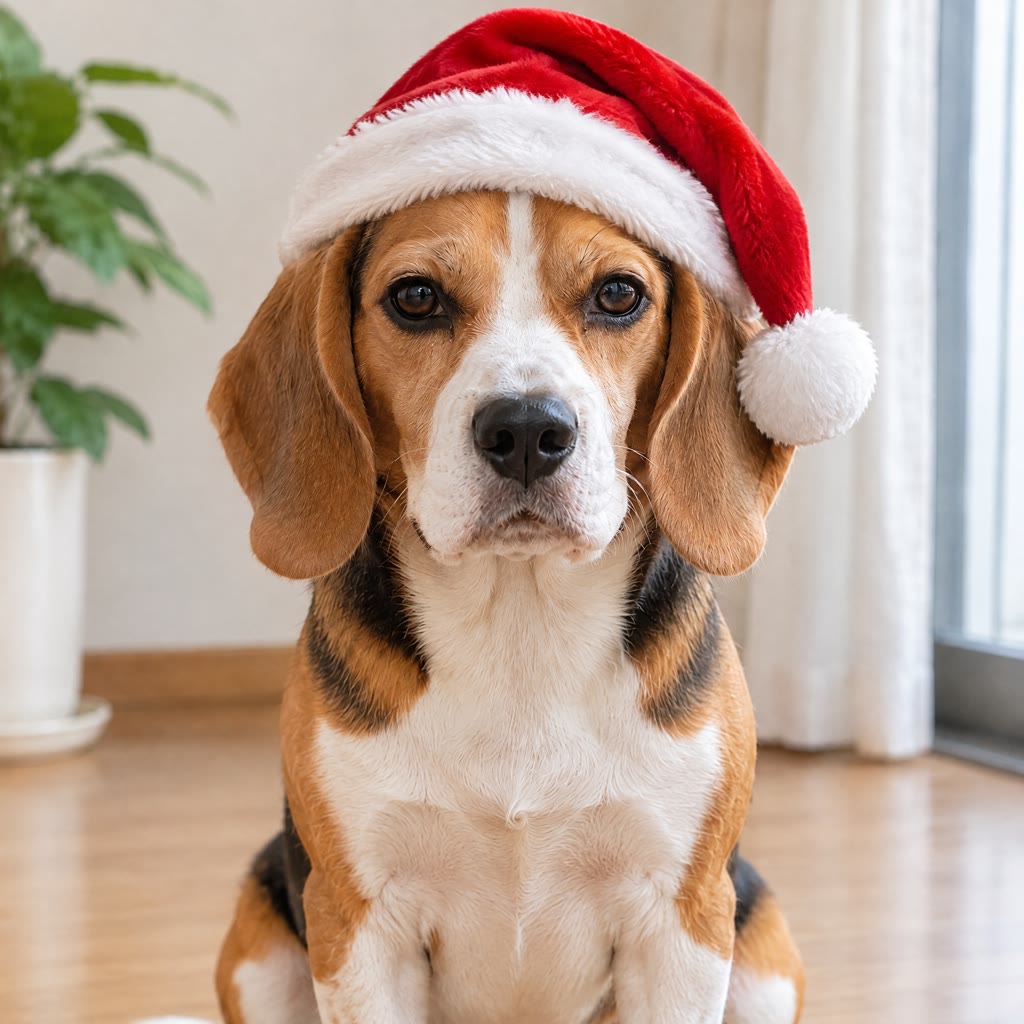
- Santa hat: red velvet with a fluffy white fur trim and a white pompom, the tip flopping to one side. Tested on a man, a cat, a beagle and a family of four.
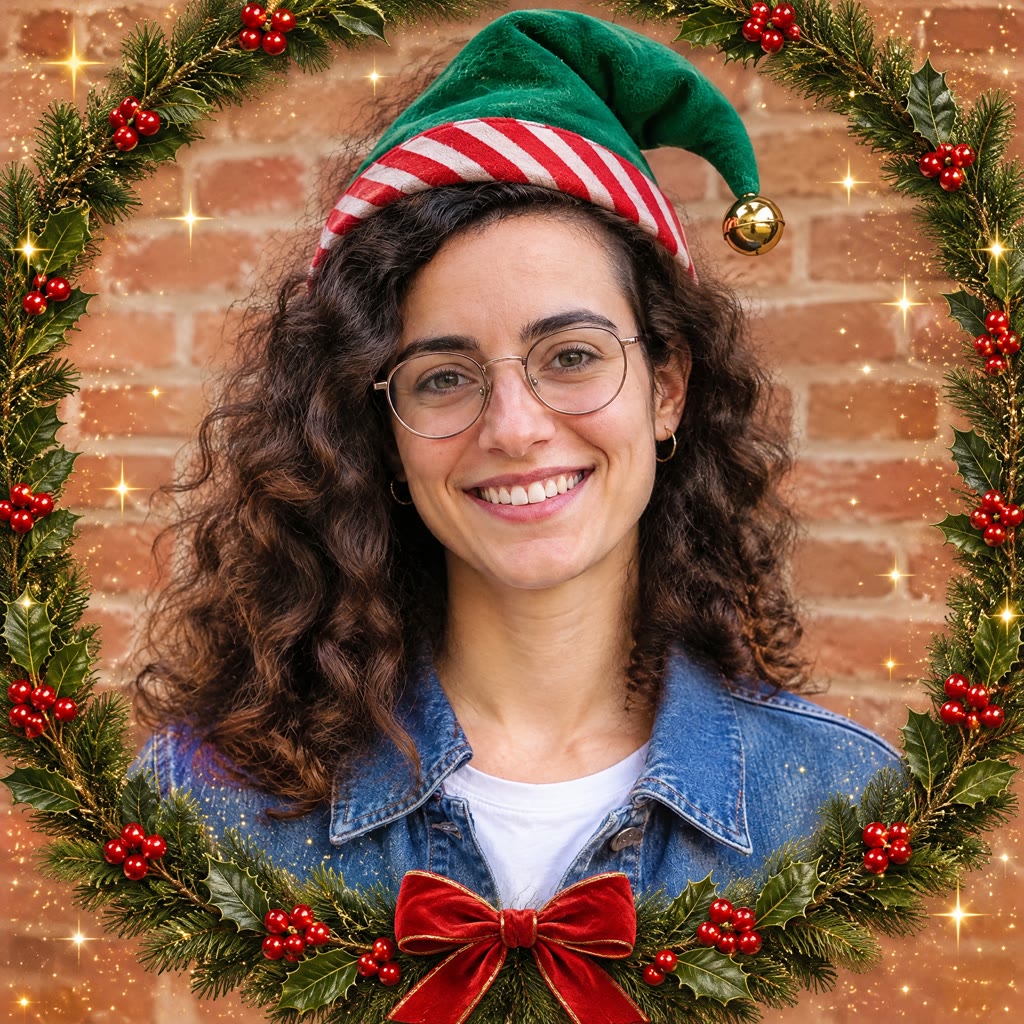
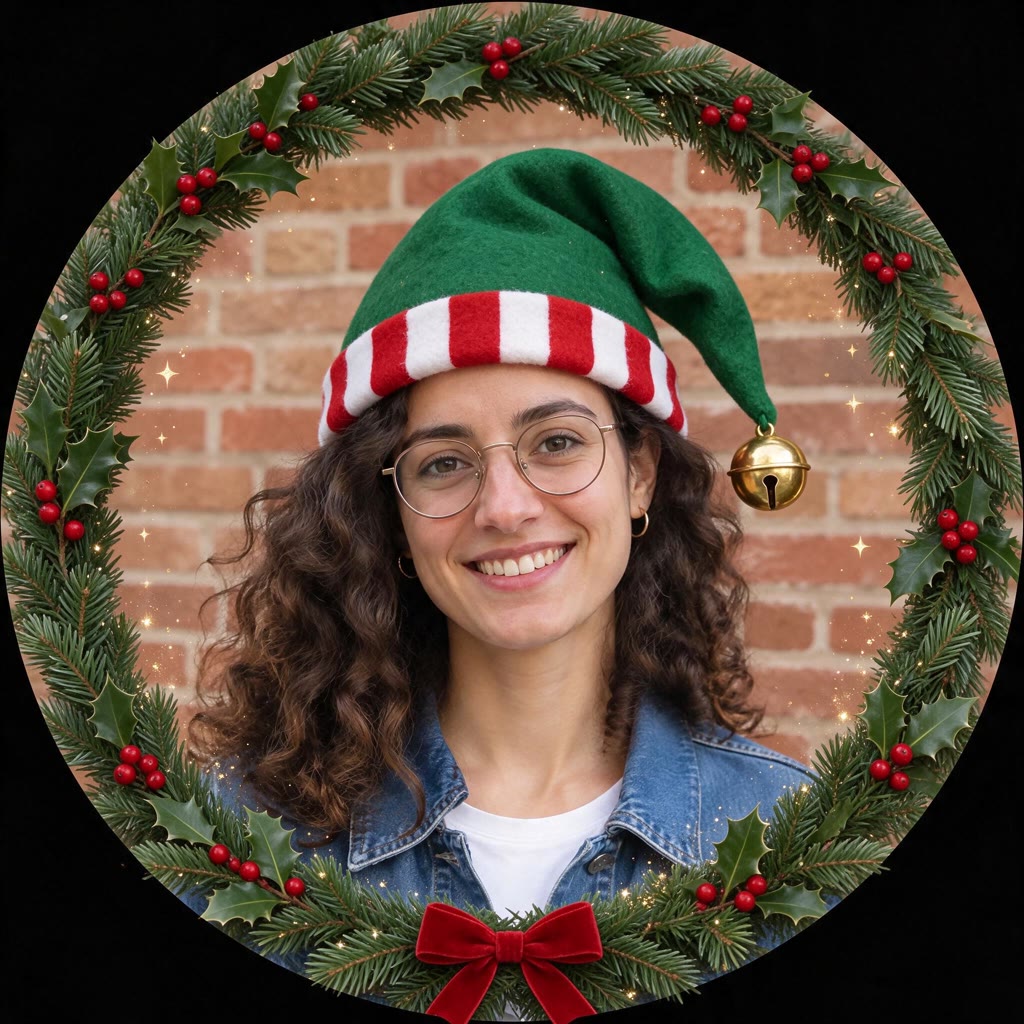
- Elf hat: green felt with a red-and-white striped band and a long curled tip with a small gold bell. Tested on a woman with glasses and curly hair.
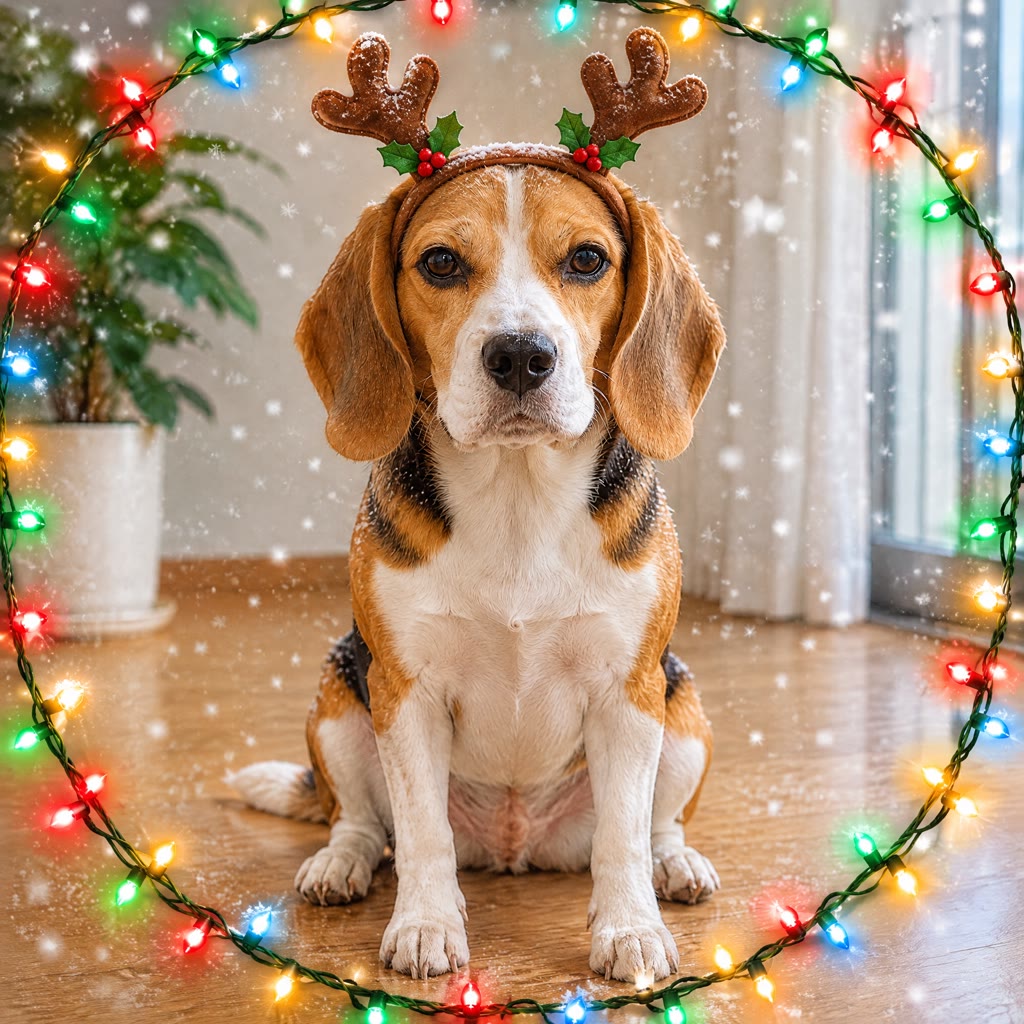
- Reindeer antlers: a headband of soft brown felt antlers with holly leaves and red berries at the base. Tested on a beagle.
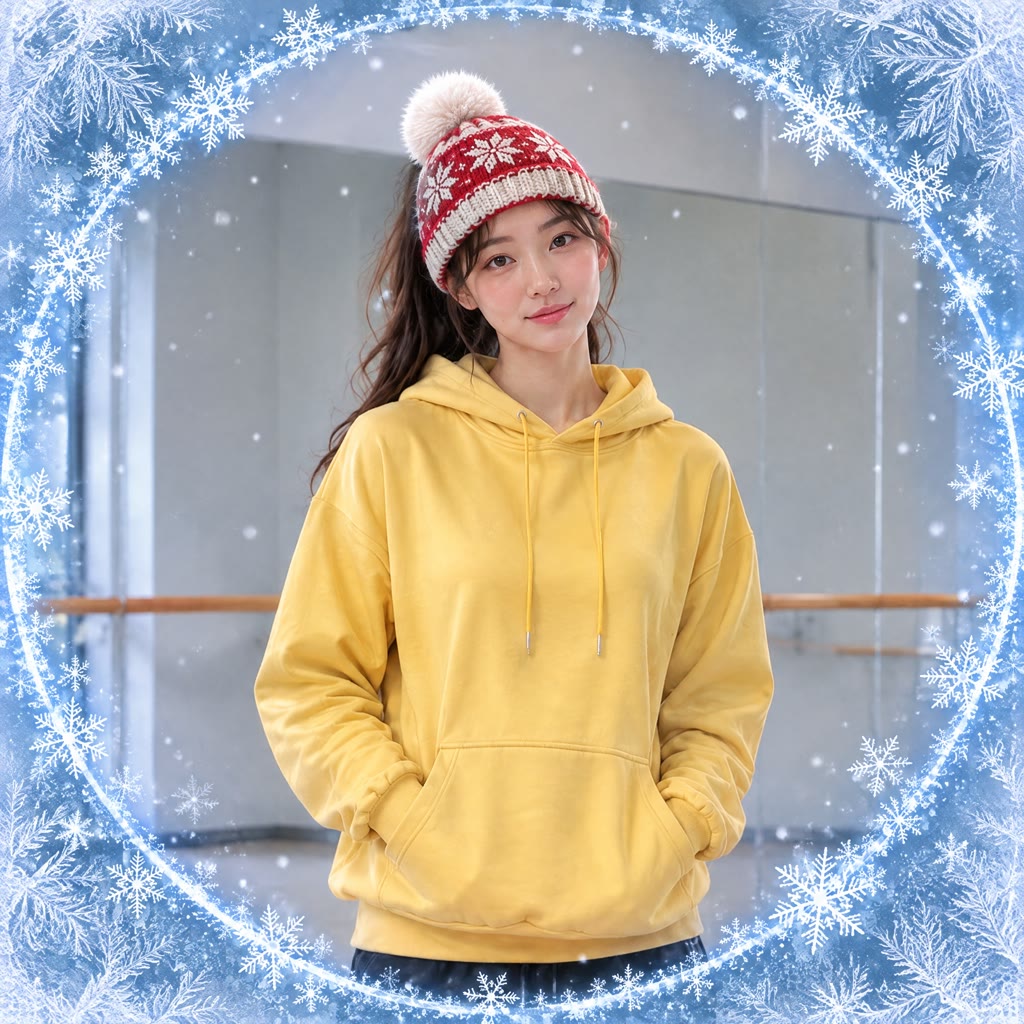
- Knit beanie: a red-and-white Nordic knit with a snowflake pattern and a big white pompom. Tested on a full-body photo.
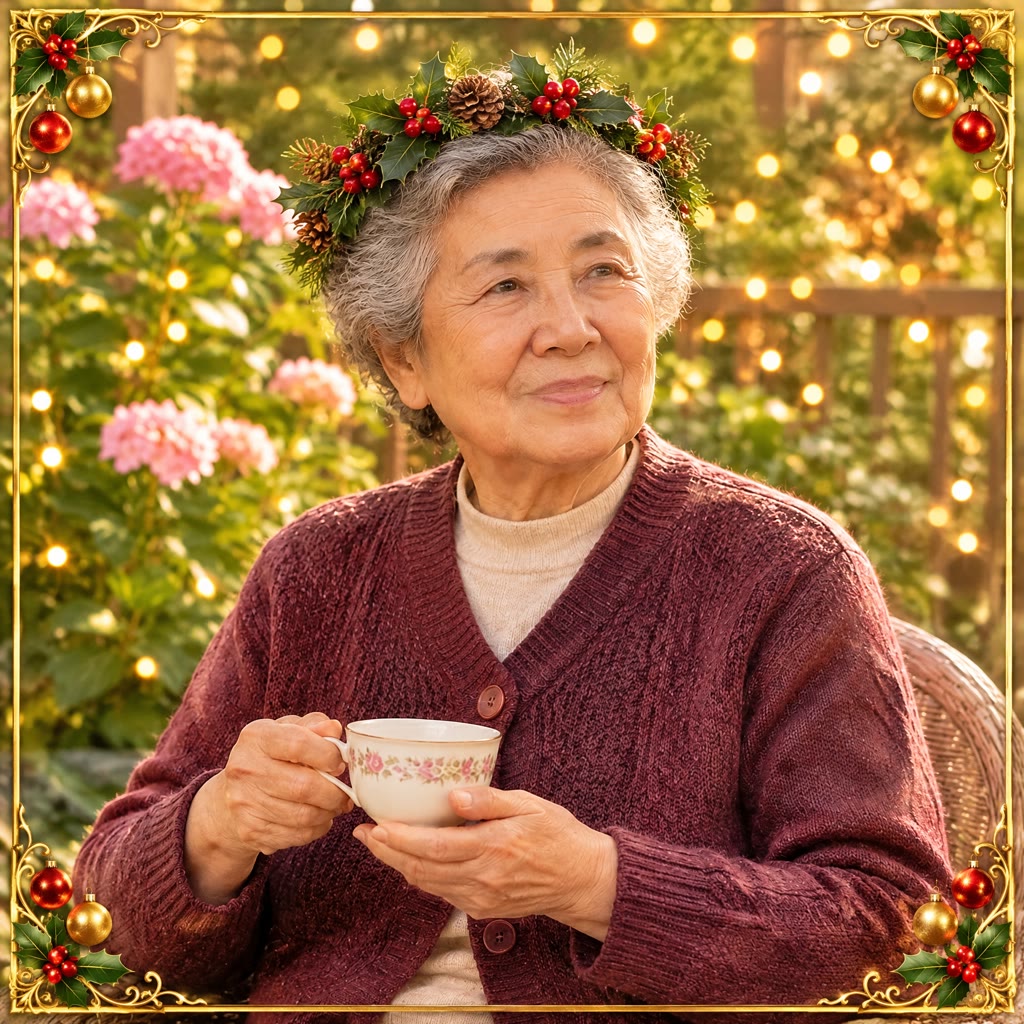
- Holly crown: glossy holly leaves, red berries, pine sprigs and tiny pinecones resting on the hair. Tested on a grandmother.
- No hat: leaves the heads as they are, for an effect or a border only. We have not tested it.
Result: Faces stayed the same under every hat we tried: under the elf hat the woman kept her glasses, curls, earrings and denim jacket, and under the holly crown the grandmother kept her face, cardigan and teacup. 24 seconds each.
Drift and limits: Everyone in the photo gets the same kind of hat; the page has no way to give each person a different one.
Add snow, lights, sparkles or frost
Pick Snowfall, Twinkle lights, Gold sparkles or Frost to add an effect over the photo, or None to leave the background as it is; effects can add things to the background.
- Snowfall: soft snowflakes drifting down over the whole picture, a few big out-of-focus flakes close to the camera and a light dusting on the hat and shoulders.
- Twinkle lights: soft, round golden fairy-light bokeh behind them and a warm glow on the face.
- Gold sparkles: a light sprinkle of gold glitter and tiny star sparkles, a little denser near the edges.
- Frost: ice crystals creeping in from the corners and a cool blue glow at the edges.
- Auto, on your own photo: a few soft snowflakes.
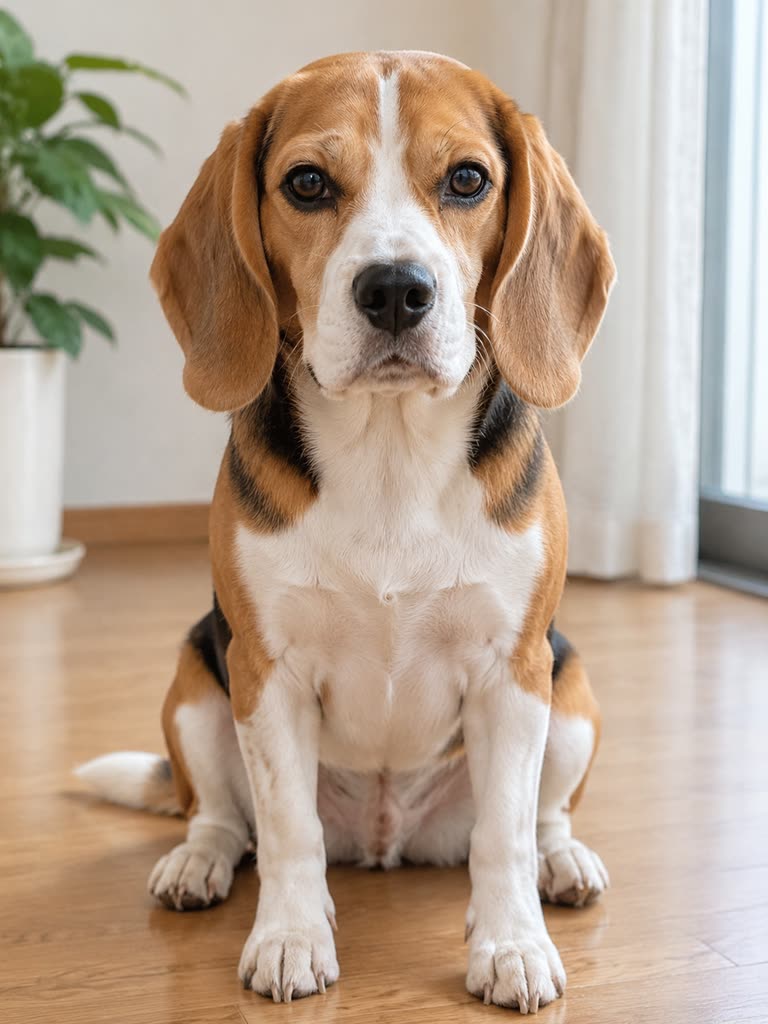
Result: With Effect and Border both set to None, the beagle came back in the same room, unchanged except for the Santa hat, in 24 seconds.
Drift and limits: Effects can add to the room: with Snowfall and a Lights ring, a small Christmas tree appeared in the beagle's room, and with Twinkle lights, Christmas tree lights appeared behind the cat.
Add a Christmas border: a ring for round avatars, a gold frame for posts
Pick one of four rings, holly wreath, lights, candy cane or snowflakes, for a profile picture that gets cropped to a circle, or the square gold frame for posts and prints; a round crop cuts the gold frame's corners.
The rings are drawn on the circle a round avatar keeps, so after the crop the whole ring is still there. The gold frame is a thin gold line around the square with baubles in the four corners, as on the grandmother's picture above.
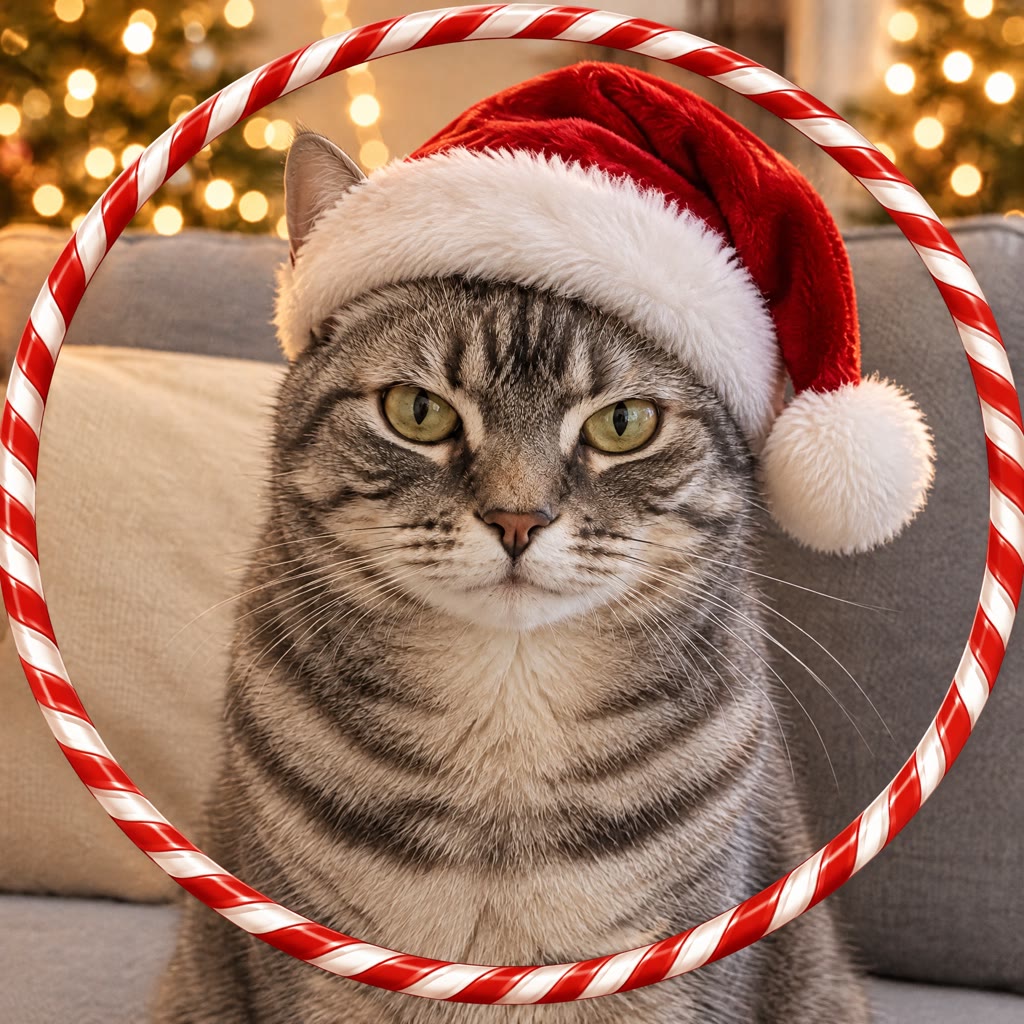
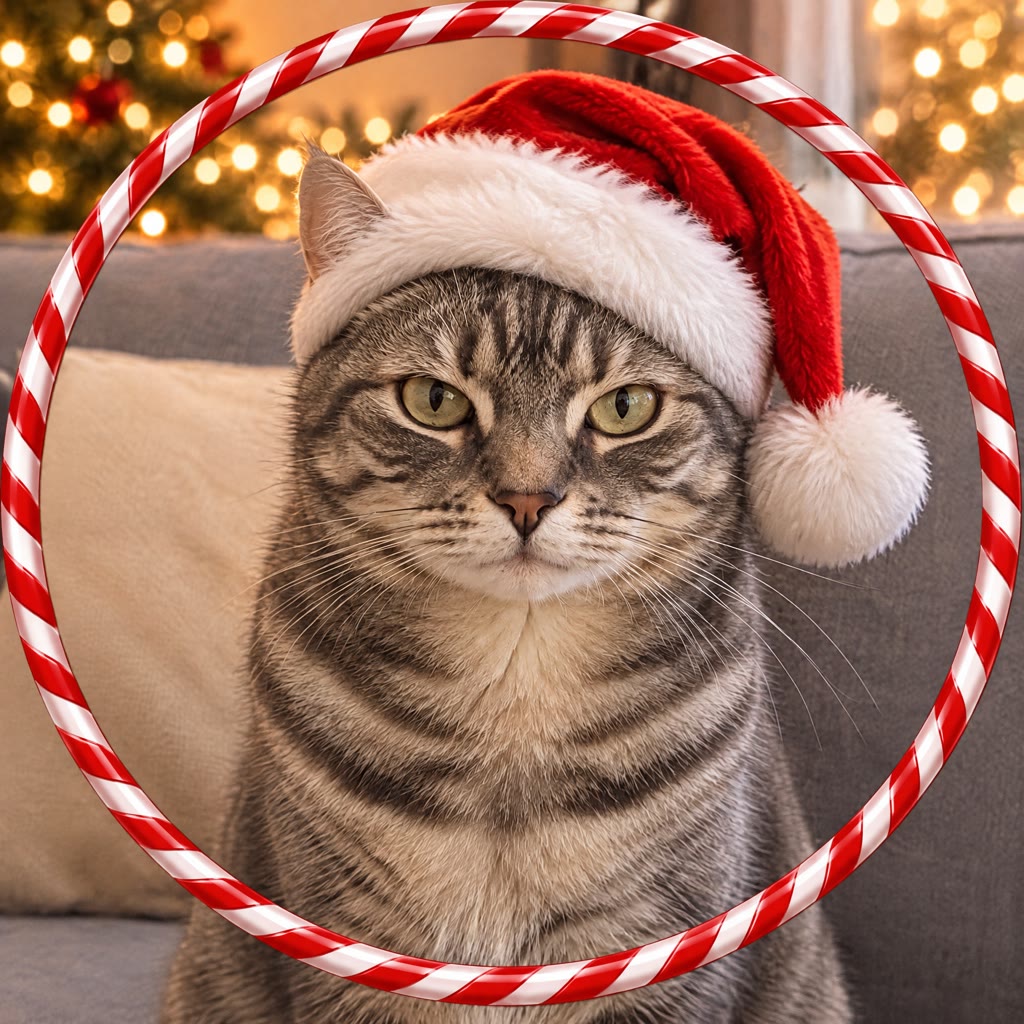
Result: After we rewrote the ring instruction, the cat came back with the candy cane ring centered and the pompom inside it, in 24 seconds.
Drift and limits: Our first ring was off-center: on the cat it shifted right, and the Santa hat's pompom stuck out of it. We rewrote the instruction to ask for a perfect circle centered in the square, touching the middle of all four sides, with the photo zoomed out so heads, hats and pompoms sit inside.
Santa hats on a group photo or a pet
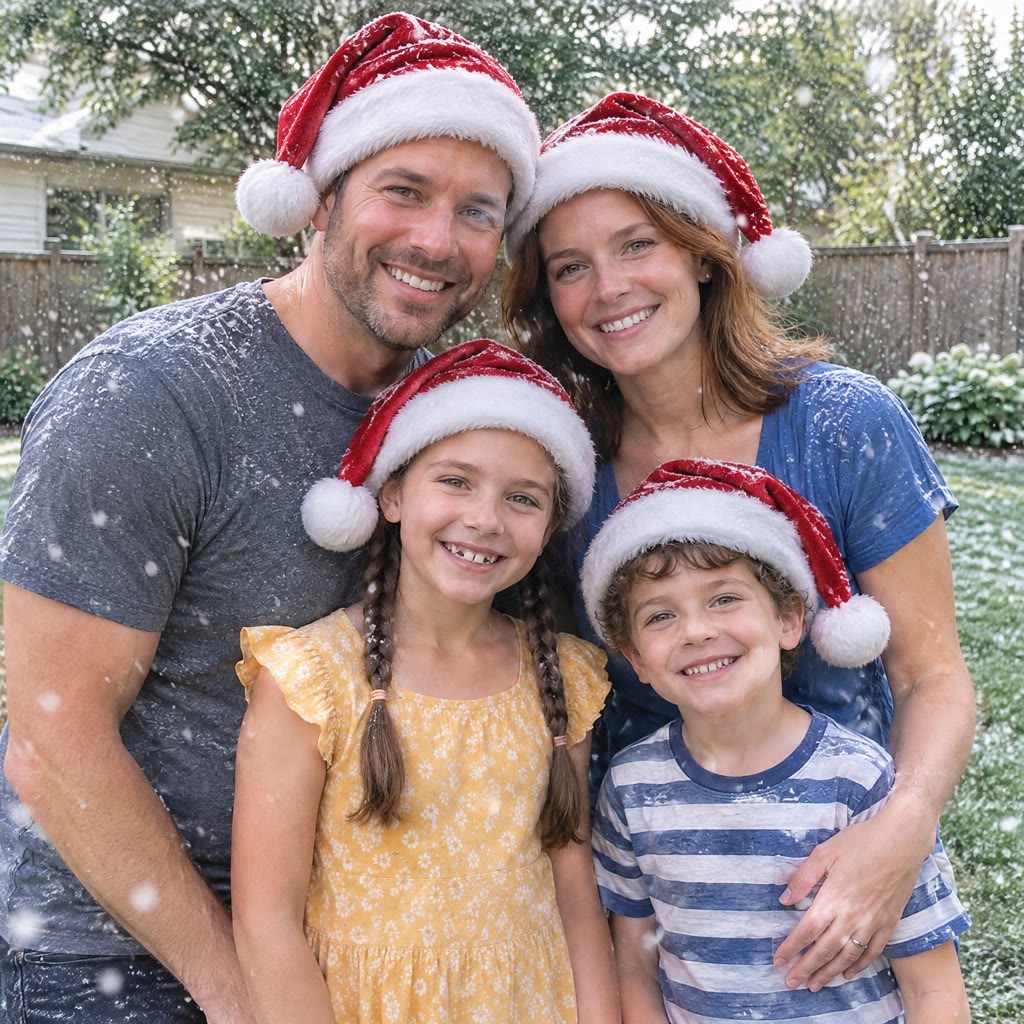
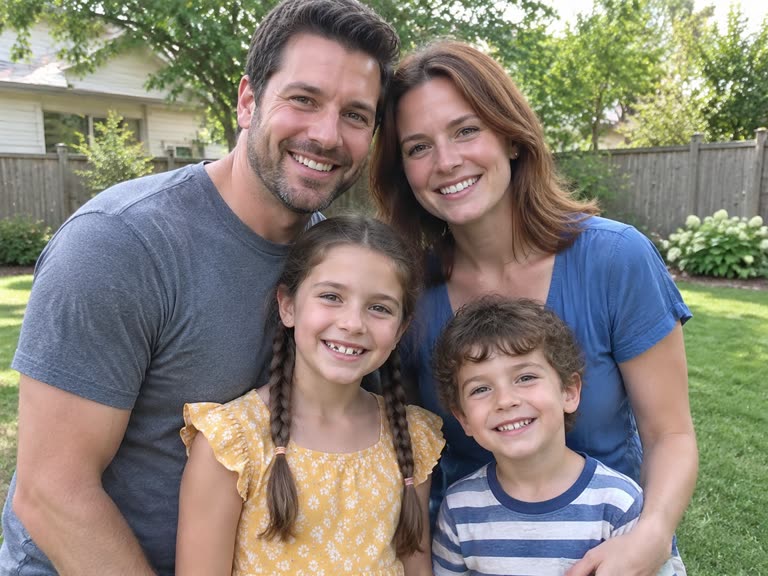
Upload the group photo or the pet photo as it is: every person and pet in it gets a hat, and in our family photo all four people got Santa hats with their faces and clothes unchanged.
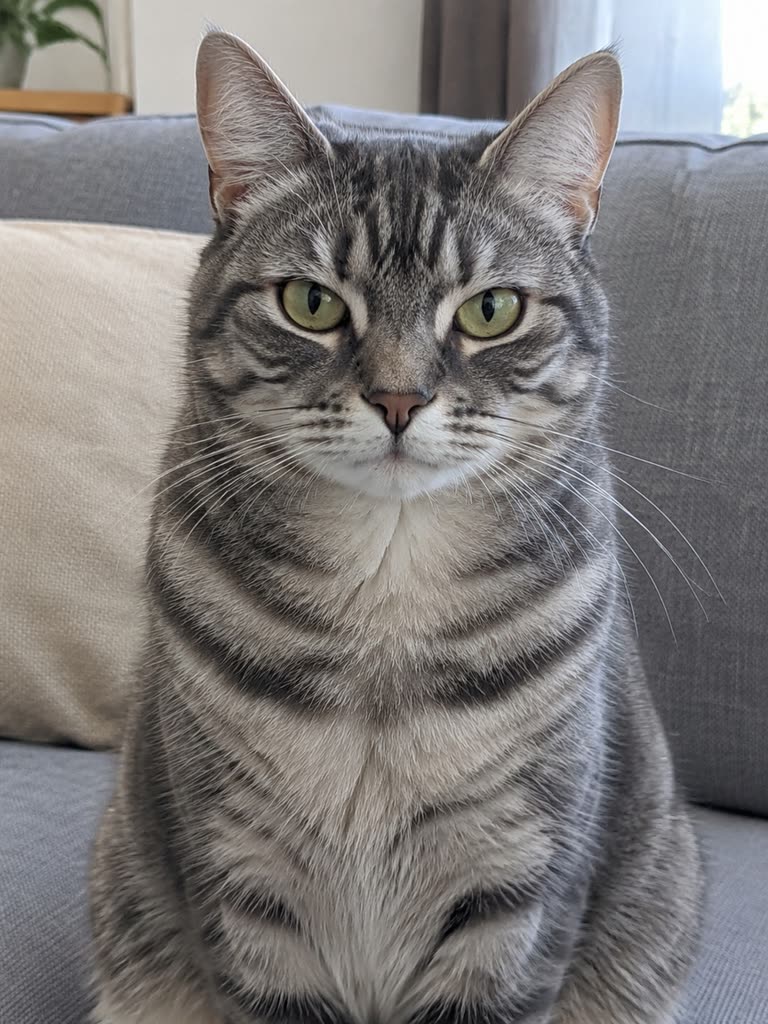
Result: A family of four in a garden, Santa hat and Snowfall: 24 seconds, all four in Santa hats. The grey tabby cat got its Santa hat inside a candy cane ring, and the beagle came back unchanged apart from its antlers or its Santa hat.
Drift and limits: The family photo was 4:3 and came back cropped to a square, so a wide group photo loses some of its sides.
Use a photo where the face is big
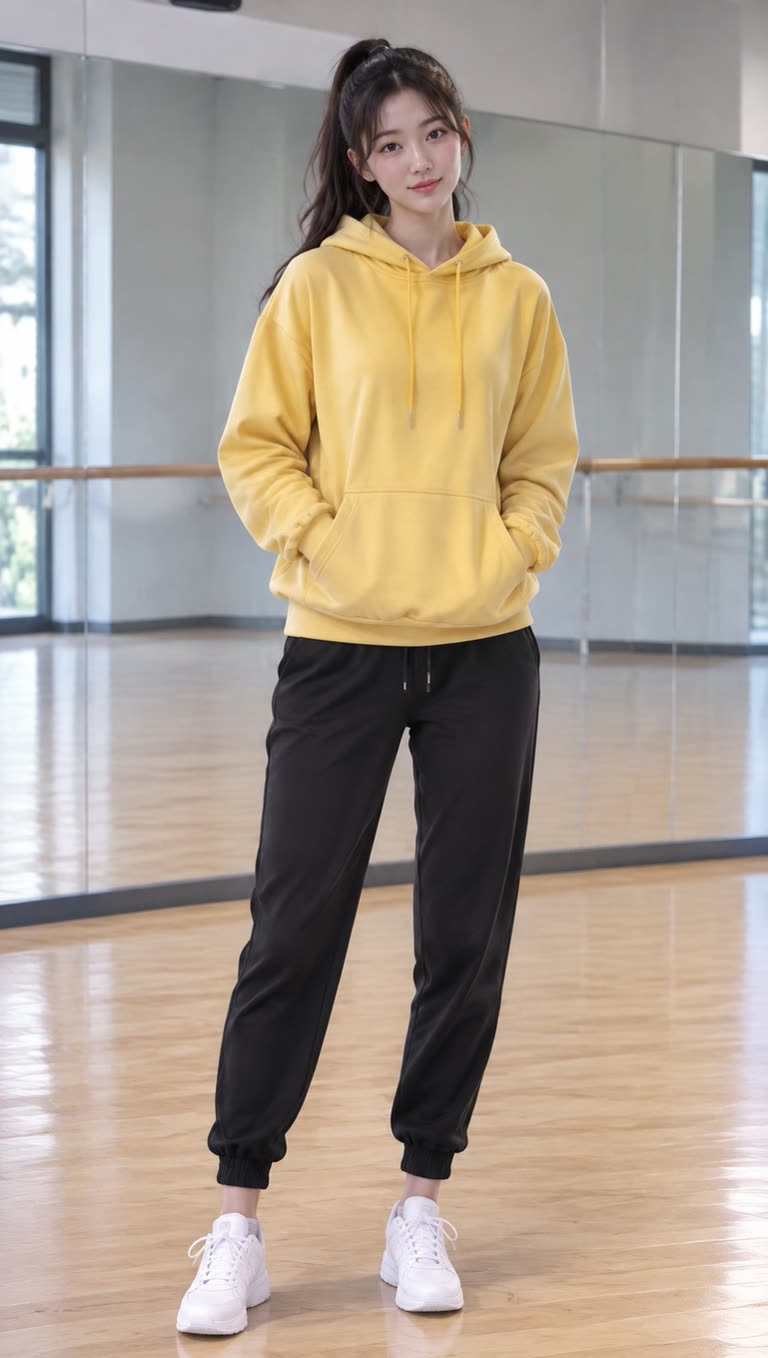
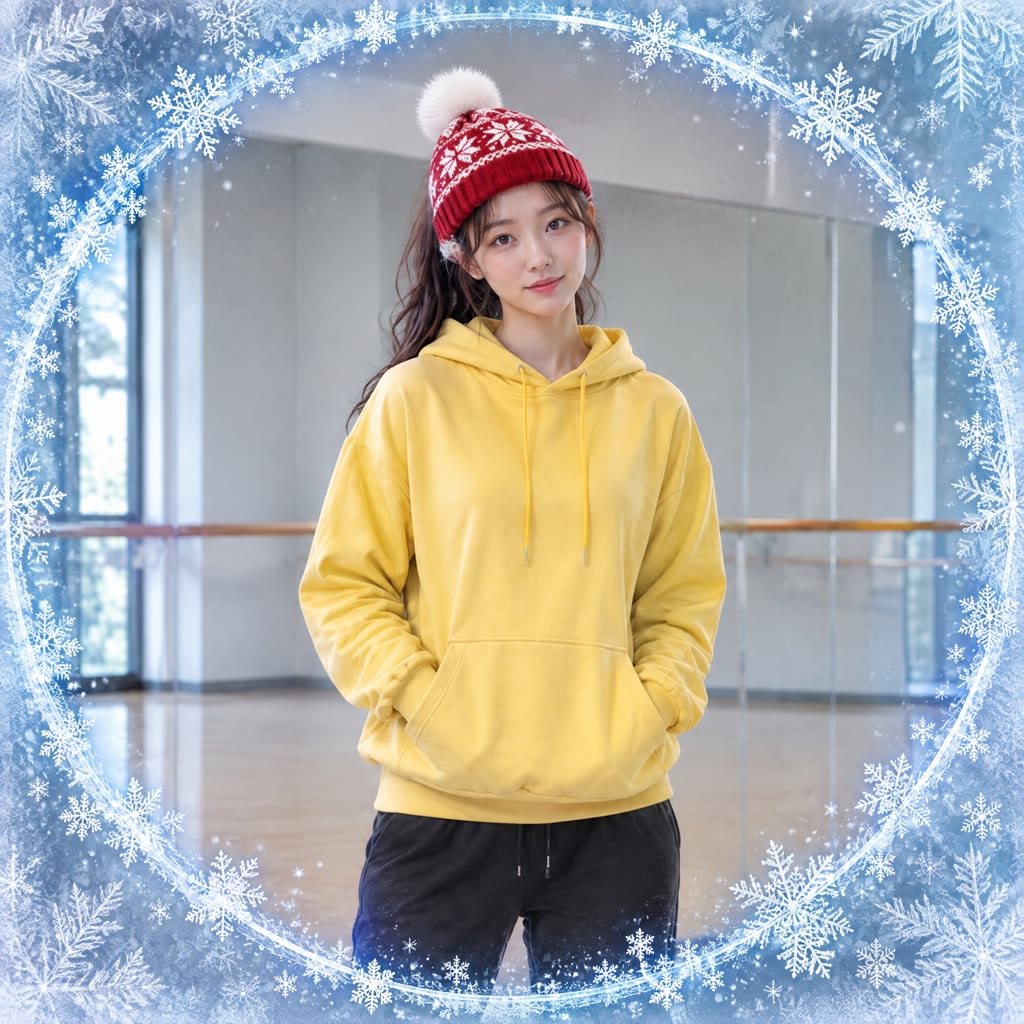
Start from a selfie or a head-and-shoulders photo: a full-body photo came back waist-up with a small face, even after we told the recipe to crop in.
Result: A full-body photo of a young woman in a yellow hoodie, with Knit beanie, Frost and Snowflake ring: 24 seconds each time. The first came back waist-up with a small face. We added "crop a full-body photo to head and shoulders" to the recipe; the second was still waist-up, only a little closer.
Want the picture redrawn instead? Pick a style
Pick Anime, 3D cartoon, Aesthetic, Photo or Pixel art instead of Keep my photo and the whole picture is redrawn in that style, hat, effect and border included.
Our redrawn tests from 19 November, with selfies, a pet and original characters, are in how to make a Christmas profile picture.
Result: The man's selfie with Anime, Santa hat, Twinkle lights and Lights ring: 28 seconds, redrawn as an anime-style painted portrait.
Drift and limits: Redrawn, the clothes can change: a scarf appeared that was not in the photo. Outside the ring the picture is black.

Why the page uses GPT Image 2.6 Flare
We ran the same recipe on Seedream 5.5: it kept the man's face too, but with the holly wreath it painted everything outside the ring black and made the woman smaller, so the page uses GPT Image 2.6 Flare.
Result: Seedream 5.5 took 33 seconds for each picture; GPT Image 2.6 Flare took 24 seconds for the same two settings.

How we tested it
On 21 November 2026 we ran 13 tests with the Christmas PFP maker's own recipe, 11 on GPT Image 2.6 Flare and 2 on Seedream 5.5, and checked each one for the face, the hat, the background and the border.
Settings: 2K, square (1:1); results are 2048×2048. Every row uses Keep my photo except the anime one. All the photos are AI-made test photos, not real people or pets.
Together with the 14 Christmas profile pictures we made on 19 November, that is 25 GPT Image 2.6 Flare tests at 20 to 28 seconds each. No test picture had any text in it, borders included.
| Photo | Settings | Time | Result |
|---|---|---|---|
| Man's selfie | Santa hat · Snowfall | 24 s | Face, navy sweater and room unchanged; snow falling, a light dusting on the shoulders |
| Woman with glasses and curly hair (3:4) | Elf hat · Gold sparkles · Holly wreath | 24 s | Glasses, curls, earrings and denim jacket kept; wreath ring with a red bow at the bottom |
| Grey tabby cat, first ring wording | Santa hat · Twinkle lights · Candy cane ring | 24 s | Ring off-center (shifted right), pompom outside the ring; Christmas tree lights behind the cat |
| Same cat, ring rewritten | Same settings | 24 s | Ring centered, pompom inside |
| Beagle | Reindeer antlers · Snowfall · Lights ring | 24 s | Dog unchanged; a small Christmas tree appeared in the room |
| Same beagle | Santa hat · Effect None · Border None | 24 s | Same room, unchanged except the Santa hat |
| Grandmother holding a teacup | Holly crown · Twinkle lights · Gold frame | 24 s | Face, cardigan and cup kept; warm bokeh lights in the garden; square gold frame with baubles in the corners |
| Family of four in a garden (4:3) | Santa hat · Snowfall | 24 s | All four in Santa hats, faces and clothes unchanged; cropped to a square |
| Full-body photo, young woman in a yellow hoodie | Knit beanie · Frost · Snowflake ring | 24 s | Waist-up, small face |
| Same photo, head-and-shoulders crop added to the recipe | Same settings | 24 s | Still waist-up, only a little closer |
| Man's selfie, Anime (redrawn) | Santa hat · Twinkle lights · Lights ring | 28 s | Anime-style painted portrait, scarf added; black outside the ring |
| Seedream 5.5: man's selfie | Santa hat · Snowfall | 33 s | Face kept |
| Seedream 5.5: woman with glasses | Elf hat · Gold sparkles · Holly wreath | 33 s | Everything outside the ring black; the woman smaller |
When this way is the wrong choice
- You want to place the hat yourself: here the AI draws it and you cannot move it afterwards; BrandBird lets you drag the hat into place.
- You want a hat on only one person in a group photo: every person and pet in the photo gets one.
- You want a wide photo to stay wide: the result is always a square, so the sides are cropped.
- You want an animated PFP: these are still images.
- Your only photo is full-body: in two tries the face stayed small. Use a selfie or a head-and-shoulders photo.
Add a Santa hat to your photo
Christmas PFP Maker →
Upload a photo, keep it as it is and pick a hat, an effect and a border.
How to Make a Christmas Profile Picture: 4 Ways →
Read the broader guide: ready-made PFPs, redrawn selfies and pets, and matching pairs.
How to Add Santa to a Photo: 4 Ways, Tested →
Put Santa himself into a photo, not just his hat.
AI Christmas Photo Generator →
Make a full Christmas photo of the family: tree, pajamas or snow.
AI Christmas Card Generator →
Turn the same photo into a Christmas card to send.
FAQ
How do I add a Santa hat to a photo for free?
BrandBird says its tool is completely free; you drag the hat into place yourself. Adobe Firefly gives free daily generations with an Adobe account. blubiu runs in the browser; its Free plan's monthly credits cover six pictures, and making one needs a sign-in.
Can AI add a Santa hat to a photo?
Yes. On the Christmas PFP maker with Keep my photo, our 10 tests kept faces, glasses, hair and clothes, and every person and pet got a hat, in 24 seconds each. Effects can add a tree or lights to the background; pick None to keep it.
Can I add a Santa hat to a photo without AI?
Not on blubiu: here the AI draws the hat onto each head. BrandBird's page describes adding a Santa hat that you drag into place yourself, though it uses AI to remove the background first.
How do I put a Santa hat on my PFP?
Upload the photo you use as your profile picture, keep Keep my photo and pick Santa hat; if your app crops profile pictures to a circle, add one of the four rings. You get a 2048×2048 square to set as your new PFP. Ours took 24 seconds.
Can I add a Christmas hat other than a Santa hat?
Yes: pick an elf hat, reindeer antlers, a knit beanie or a holly crown. We tested each on one photo, a woman, a beagle, a full-body shot and a grandmother, and the faces stayed the same.
Sources and dates
- Questions: Google autocomplete for "add santa hat to photo", "santa hat on photo" and "how to add santa hat" (21 November 2026), and Google's People also ask for "how to add santa to a photo" (US, 19 November 2026).
- Other ways, as their own pages describe them: BrandBird's Christmas profile picture maker and Adobe Firefly's Christmas profile picture page (read 19 November 2026), and SuperMaker AI's Christmas PFP page (read 21 November 2026).
- Test results: our own runs on blubiu on 21 November 2026; the photos are AI-generated test images.