
AI Video Upscaler
Upscale a video to 1080P, 2K or 4K in your browser. The clip stays the same; only the resolution and detail go up.
What is an AI video upscaler?
An AI video upscaler is a tool that raises a video's resolution and sharpens its detail without changing what happens in it. blubiu's upscaler runs on FlashVSR, a video super-resolution model: upload one MP4 or MOV up to 120 seconds, pick 1080P, 2K or 4K, and get the same clip back with the same length and frame rate. It suits old footage, compressed social video and low-res AI clips.
Checked 2026-11-03
Who it's for
- +You have old footage or archive clips that look soft on today's screens.
- +A social platform or messaging app compressed your video and the detail went muddy.
- +You like an AI clip you made at 480P or 720P and want that exact take at a delivery resolution.
- +You finished a dance with AI motion transfer at 720P or 1080P and the client asked for a 2K or 4K master.
- +You are cutting clips from different sources into one edit and a few of them look visibly softer than the rest.
When not to use it
- −The source is so blurry that faces or text can't be made out. An upscaler sharpens detail that is there; it can't recover detail the camera never captured.
- −You want different content, a new style or a new camera move. That is a new generation, not an upscale. Create Video with AI →
- −You want more frames, smoother motion or slow motion. The output keeps the source frame rate; nothing is interpolated.
How to upscale a video to 4K with AI
- 01
Upload one clip
One MP4 or MOV, up to 120 seconds. Upload the original file rather than a screen recording: every extra round of compression removes detail.
- 02
Pick a target resolution
1080P for everyday use, 2K for an editing master, 4K for large screens or delivery. The rate depends on the tier, and the Generate button shows the total.
- 03
Compare before you use it
The result has the same length and frame rate as the source; only resolution and sharpness change. Check faces and text at full size before you swap it into your edit.
Tips for better AI video upscaler results
Upscale the cleanest copy you have
Every screen recording, chat-app forward or re-encode compresses the video again and throws detail away. The upscaler can only sharpen what is in the file you give it, so go back to the camera original, the export from your editor, or the file the AI generator returned.
Trim first: every second of the source is billed
You pay per second of the source, counted in whole seconds and rounded up, so a 4.2-second clip is billed as 5. Cut the clip to the part that will be in your edit. Anything over 120 seconds has to be split first; split at an existing cut so the join stays invisible.
Pick the tier for the screen it will play on
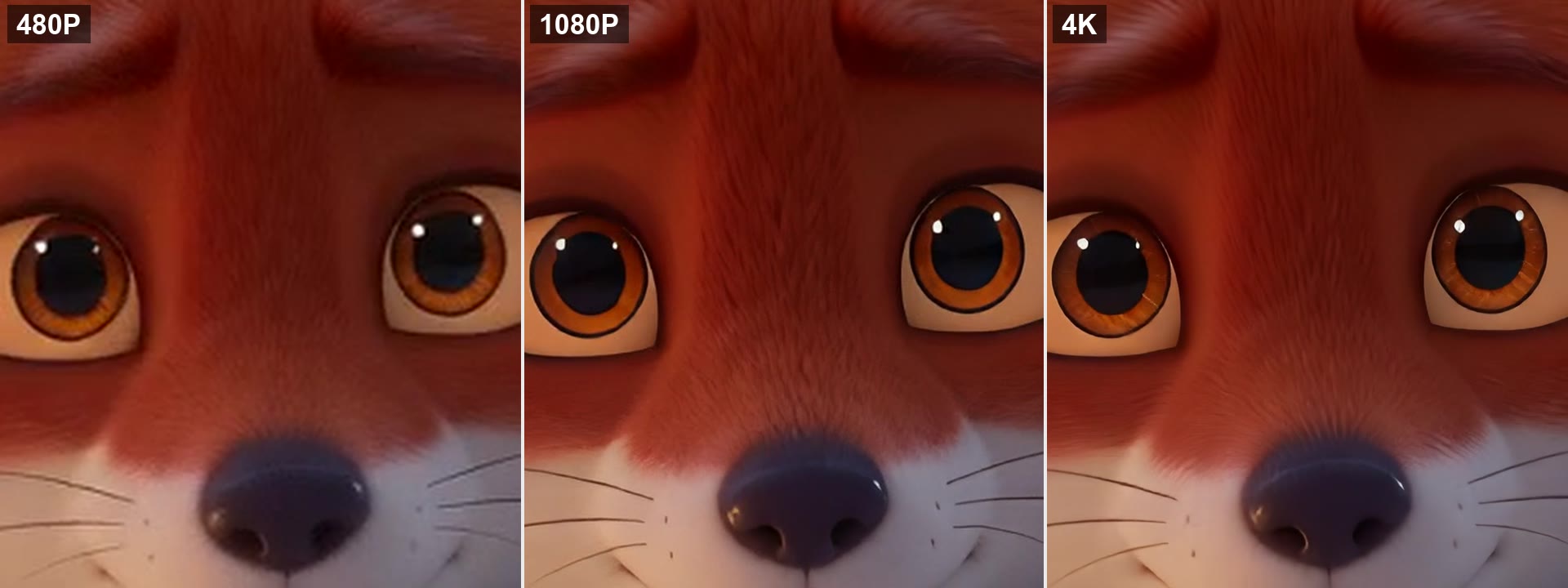
1080P covers phones and social feeds, 2K suits an editing master, and 4K is for TVs, large screens or a client who asked for it. A higher tier costs more per second and can't invent detail the source never had. In our test on a 5-second 480P AI clip, 1080P already brought back most of the visible fur and whisker detail, and 4K mainly added finer texture in the eyes at twice the per-second rate. With a soft source, run 1080P first and only move up if you can see the difference.
For 4K AI video, upscale the keeper
No video model on blubiu renders 4K directly: MiniMax H3 goes to 2K and the others top out at 1080P or lower. Draft in the AI video generator, choose the take you like, and upscale only that one.
Add titles and captions after upscaling
Text burnt into the source gets upscaled along with everything else, so small captions stay as soft as the footage around them. Upscale the clean shot, then add titles, subtitles and logos in your editor at the new resolution, where they render sharp.
AI video upscaler examples
All of these were generated on blubiu.
AI video upscaler vs. similar tools
| Tool | You give | You get | Best for |
|---|---|---|---|
| AI video upscaler (this page) | One MP4 or MOV up to 120 seconds | The same clip at 1080P, 2K or 4K, with the same length and frame rate | Keeping an exact take: old footage, compressed social video, low-res AI clips |
| AI video generator | A prompt, or an image as the first frame | A brand-new clip, up to 1080P on most models | When a different take is fine and the low-res source isn't worth saving |
| MiniMax H3 | A prompt, with optional reference images | A new silent clip rendered at 2K | 2K straight from a prompt when there is no footage to upscale |
| Resizing in a video editor (this page) | Any clip on your timeline | More pixels, with the same soft detail stretched larger | Clips that are already sharp and only need to fit a bigger timeline |
AI video upscaler FAQ
Can I try the AI video upscaler for free?
Yes. The Free plan includes monthly credits you can spend here, and the Generate button shows the exact cost before you confirm. A short clip at 1080P is the cheapest way to see what it does with your footage. Failed jobs are refunded automatically.
How is video upscaling billed?
Per second of the source video, at a rate set by the target resolution. The price is fixed when you submit, so a larger output file doesn't cost more, and the Generate button shows the total first. If the job fails, the credits come back automatically.
How long can the video be?
Up to 120 seconds per clip, as MP4 or MOV. For a longer video, cut it into parts of 120 seconds or less, upscale each part, and join them in your editor.
Should I upscale a clip or regenerate it at a higher resolution?
Upscale when you want to keep the exact clip you have; regenerate when a new take is acceptable. Upscaling changes only resolution and sharpness, so motion, timing and composition stay identical. Rerunning an AI prompt at 1080P gives a different result every time, though it may contain detail an upscaler can't recover from a low-res source.
Will 4K make a blurry video look like it was shot in 4K?
No. The output has 4K pixels, and edges and textures get sharper, but detail that was never recorded can't be restored. The cleaner the source, the more the upscale shows. With a very blurry source, try 1080P first and only move up if you can see the difference.
How long does AI video upscaling take?
In our test, a 5-second clip took about two and a half minutes to reach 1080P and about six minutes to reach 4K. Longer clips and higher tiers take longer. You can leave the page while it runs; the finished video is saved to your Creations page.
Why does it say it can't read the video's duration?
Some streamed or fragmented MP4 recordings don't store a total length. Re-export the file as a regular MP4 with any video tool and upload it again.
Is an AI video upscaler the same as an AI video enhancer?
Not quite. An upscaler does one job: more pixels and sharper edges and textures, with everything else left as it is. Video enhancers often bundle other fixes too, such as denoising, color correction, frame interpolation or stabilization. This tool only upscales, so it won't change colors, add frames or steady a shaky shot.
Can I upscale a video without signing up?
No. You need a free blubiu account, which takes one click with Google. The upscale runs on our servers and costs credits, and the account is where your Free plan credits and the finished video live: every result is saved to your Creations page.
Which resolutions can I upscale to?
1080P, 2K or 4K. The frame keeps the shape of your source, so the exact size follows it: our 864×496 test clip came back at 1904×1104 for 1080P and 3808×2192 for 4K. The model also supports 720P, but this tool leaves that tier out because lifting a clip only to 720P is of little use for most footage. Pick the resolution the video will actually be watched at.
Which model does the AI video upscaler use?
FlashVSR, a video super-resolution model, running on blubiu's servers: there is no GPU, ComfyUI or local install involved. The FlashVSR page covers the model itself and its current rates.
Can I upscale videos made with AI?
Yes. No video model on blubiu renders 4K, so upscaling is how an AI clip gets there. Results from AI motion transfer (720P or 1080P, up to 30 seconds) and from AI character swap (up to 1080P) both fit within the 120-second limit.
Tools to pair with the AI video upscaler
FlashVSR Video Upscaler →
Read about FlashVSR, the video super-resolution model behind this tool; its specs table lists the per-second rate for each resolution.
AI Motion Transfer →
Motion transfer outputs 720P or 1080P and runs up to 30 seconds, so a finished dance fits into one upscale to 2K or 4K.
AI Character Swap for Video →
Character swaps top out at 1080P; upscale the swapped clip when it has to sit next to sharper footage.
AI Image to Video Generator →
Animate a still into a short clip, then upscale the take you keep for delivery.
Other creation tools
Wire script, character, shot and voice nodes into one pipeline and generate it clip by clip, with the same character in every clip.